

If your business depends on a fleet of vehicles, then you already know that getting them on the road is your number one priority. A broken down delivery van or a broken down company car doesn’t just cost you money to fix, it costs you time, it disrupts your schedule and it impacts your customers.
To keep a fleet properly, you need to keep up with regular maintenance (like oil changes and tire rotations) and unexpected repairs. Scheduling and recording these services helps make sure each vehicle is safe and operational when your team needs it. Fortunately, Odoo 19.0 makes this process extremely easy.
Let’s take a closer look at how you can manage, track and log your vehicle services with Odoo’s Fleet app.
Making Service Records
With Odoo you can manage your administration tasks your way. You can record a vehicle service in one of two ways: by entering it directly via the Fleet app, or by generating it automatically from a vendor bill in the Accounting app.
Method 1: Log directly with the Fleet app
The most common way for fleet managers who want to have direct input on maintenance schedules is to add services directly through the Fleet app.
To start, open your database and choose Fleet app > Fleet > Services. This will take you to your main Services dashboard. Click the New button in the upper left corner to open a blank service form.
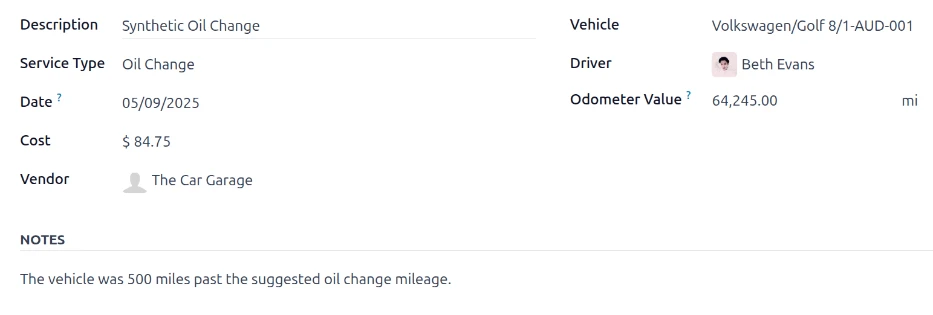
You will have to complete the information on this form. The system does require you to complete only two fields, Service Type and Vehicle, but completing the rest gives you much better data for reporting later.
Here is a quick run down of the fields you will see:
-
Description: Short, simple description of work done (e.g. “60k Mile Scheduled Maintenance”)
-
Type of Service: Select from the drop-down menu what was done. Note that Odoo 19.0 comes preconfigured with only one type out of the box: Vendor Bill. Just type in something specific, like an oil change, and then click Create or Create and edit... to add this to your system for future use.
-
Date: Select the date the service was or is scheduled to be performed from the calendar pop-up.
-
Cost: Enter your estimated cost here. If it’s a future repair and you don’t have a price yet, leave it blank. When the final bill comes in, you can update this easily.
-
Vendor: Who performed the work? Choose your garage or mechanic from your drop down list.
-
Vehicle: : Identify the specific car or truck that was serviced.
-
Driver: After you select the vehicle, Odoo is smart enough to automatically fill this field with the current driver of the vehicleu.
-
Odometer Reading: Enter the odometer r reading (in km or miles) at the time of the service.
-
Notes: There is a text box at the bottom of the form to drop any extra context. This is where you can list specific parts that were replaced or details from the mechanics estimate.
Method 2: Logging from the accounting application
Sometimes, you don’t hear about a repair until the invoice lands on the accountant’s desk. This is simple for Odoo to manage and avoids duplicate data entry.
If you open a repair vendor bill in the Accounting app, go to the Invoice Lines tab. You will need to make sure the vehicle is linked to the bill. To do this click the additional options icon on the right of the invoice lines, check the box next to Vehicle and select the car that was serviced from the list.
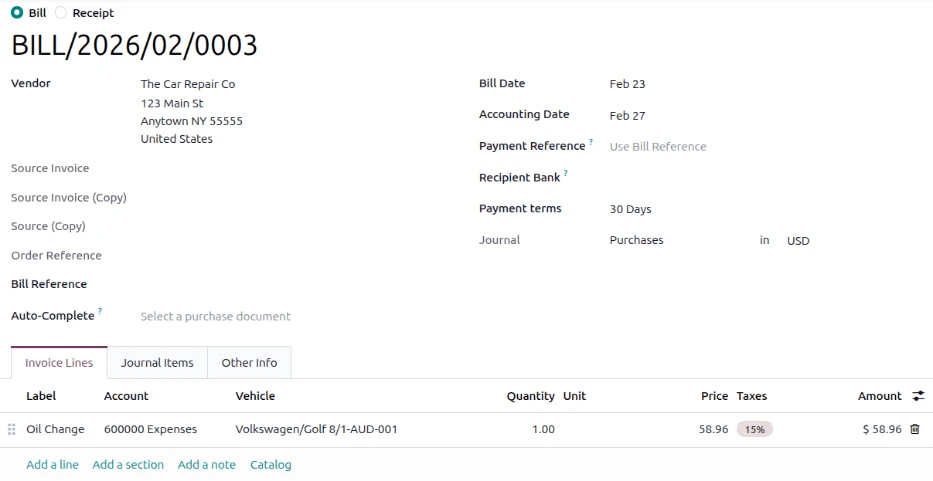
Fill that Vehicle field on the bill, and Odoo does its magic behind the scenes. And over in the Fleet app, it auto-creates a whole new service record.
But since the system doesn’t know exactly what the mechanic did it sets the Service Type to Vendor Bill by default. If you open a repair vendor bill in the Accounting app, go to the Invoice Lines tab. You will need to make sure the vehicle is linked to the bill. To do this click the additional options icon on the right of the invoice lines, check the box next to Vehicle and select the car that was serviced from the list.
Fill that Vehicle field on the bill, and Odoo does its magic behind the scenes. And over in the Fleet app, it auto-creates a whole new service record.
But since the system doesn’t know exactly what the mechanic did it sets the Service Type to Vendor Bill by default.
How to Check Your Fleet’s Service History
Once you have a regular flow of maintenance records in your system, you’ll want to go through them. Tracking past services will help identify “lemon” vehicles that are costing too much to maintain, or verify that routine preventative care is actually taking place.
To see it all in one place, just go to Fleet app > Fleet > Services.
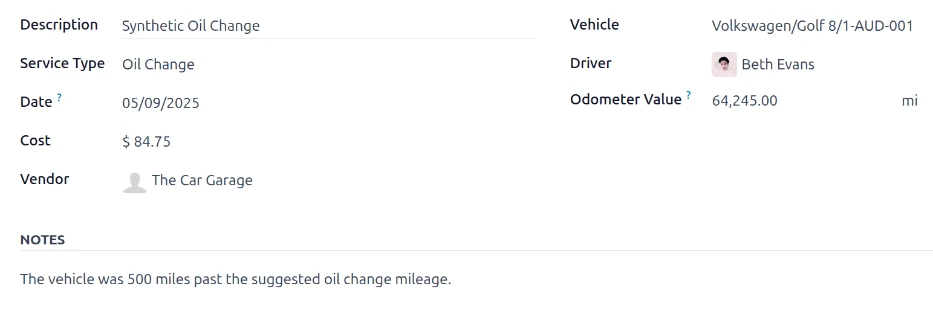
The dashboard defaults to a list view of all services, both past and future requests. Best of all, Odoo automatically groups these records by their Service Type, so it is incredibly easy to see exactly how many brake replacements, oil changes, or tire rotations your fleet has undergone this year.
With these simple features in Odoo 19.0 you take the guesswork out of vehicle maintenance so your fleet remains reliable, your drivers remain safe and your repair costs remain completely transparent.








Leave a comment