

Taxes
Let’s be honest: handling taxes is usually the least favorite part of running a business. However, it is the one thing you absolutely cannot afford to get wrong. Whether you are dealing with a local sales tax or complex international VAT, your ERP system needs to be your safety net. In Odoo 19, tax management isn't just a side feature—it’s baked into the very core of how the software handles money.
Breaking Down the Basics: What Are We Actually Paying?
Before jumping into the software, it helps to remember why we’re clicking these buttons. A tax is simply a mandatory fee we pay to the government to keep public services running.
Generally, you’ll encounter two "flavors" of tax:
Direct Taxes: These come straight out of your pocket or your company’s profit, like Income Tax or Corporate Tax.
Indirect Taxes: This is what Odoo handles most often. You collect it from a customer and then hand it over to the government later. Think GST in India or VAT in the UAE.
The Math in Action: If you sell a gadget for ₹1,000 and the GST is 18%, the customer hands you ₹1,180. That extra ₹180 isn't your profit; it’s a liability you’re holding for the taxman.
How Odoo 19 Handles the Heavy Lifting
The beauty of Odoo is that it bridges the gap between your sales team and your accountants. When you set up a tax correctly, it automatically ripples through your sales orders, vendor bills, and financial reports without you having to lift a finger.
The Three Pillars of Odoo Taxes
TAX type used in Odoo
- Sales Tax:Applied on customer invoices.
- Purchase Tax:Applied on vendor bills.
- Withholding Tax: For TDS or Retention scenarios.
Configure Taxes in Odoo
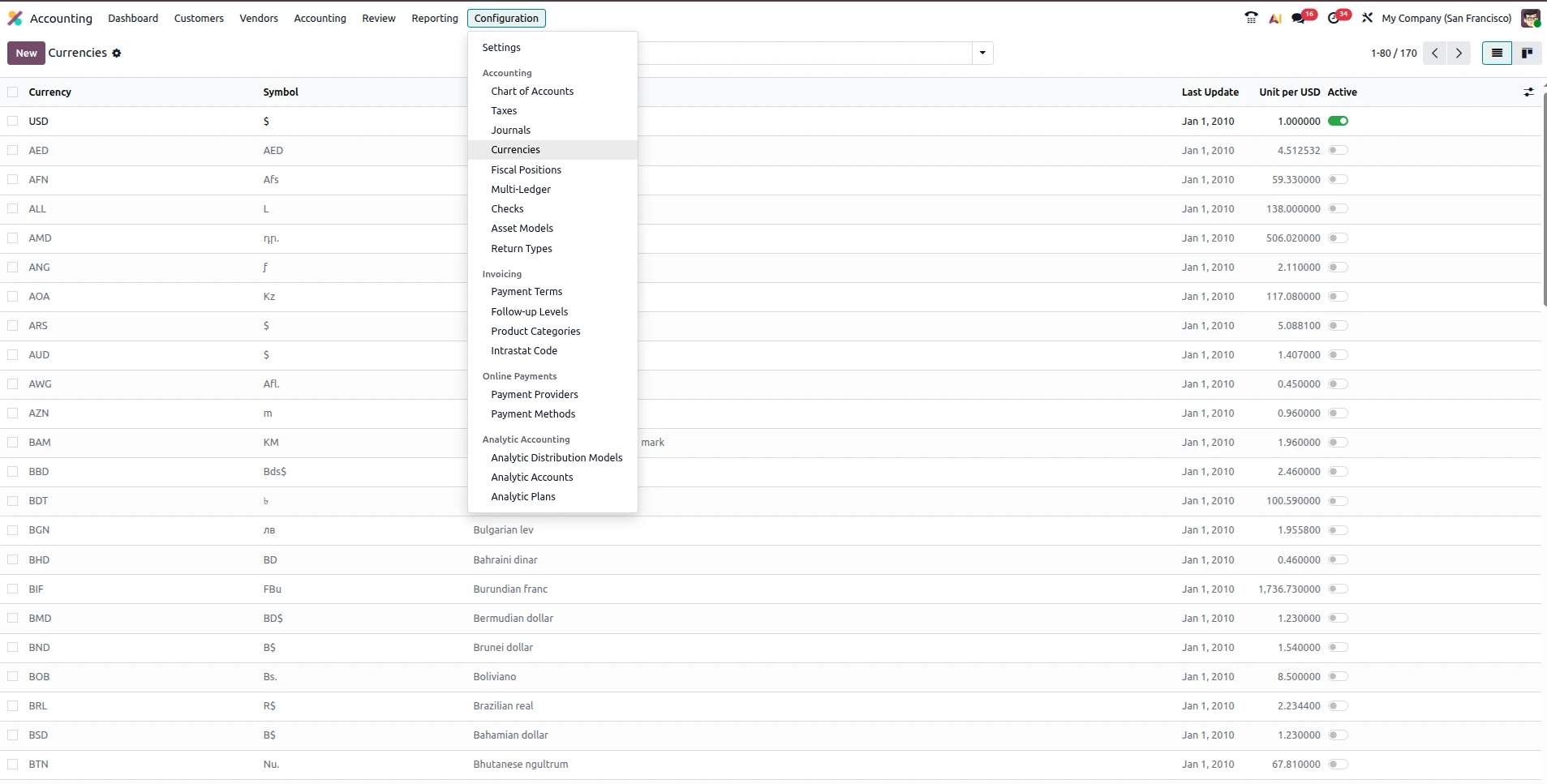
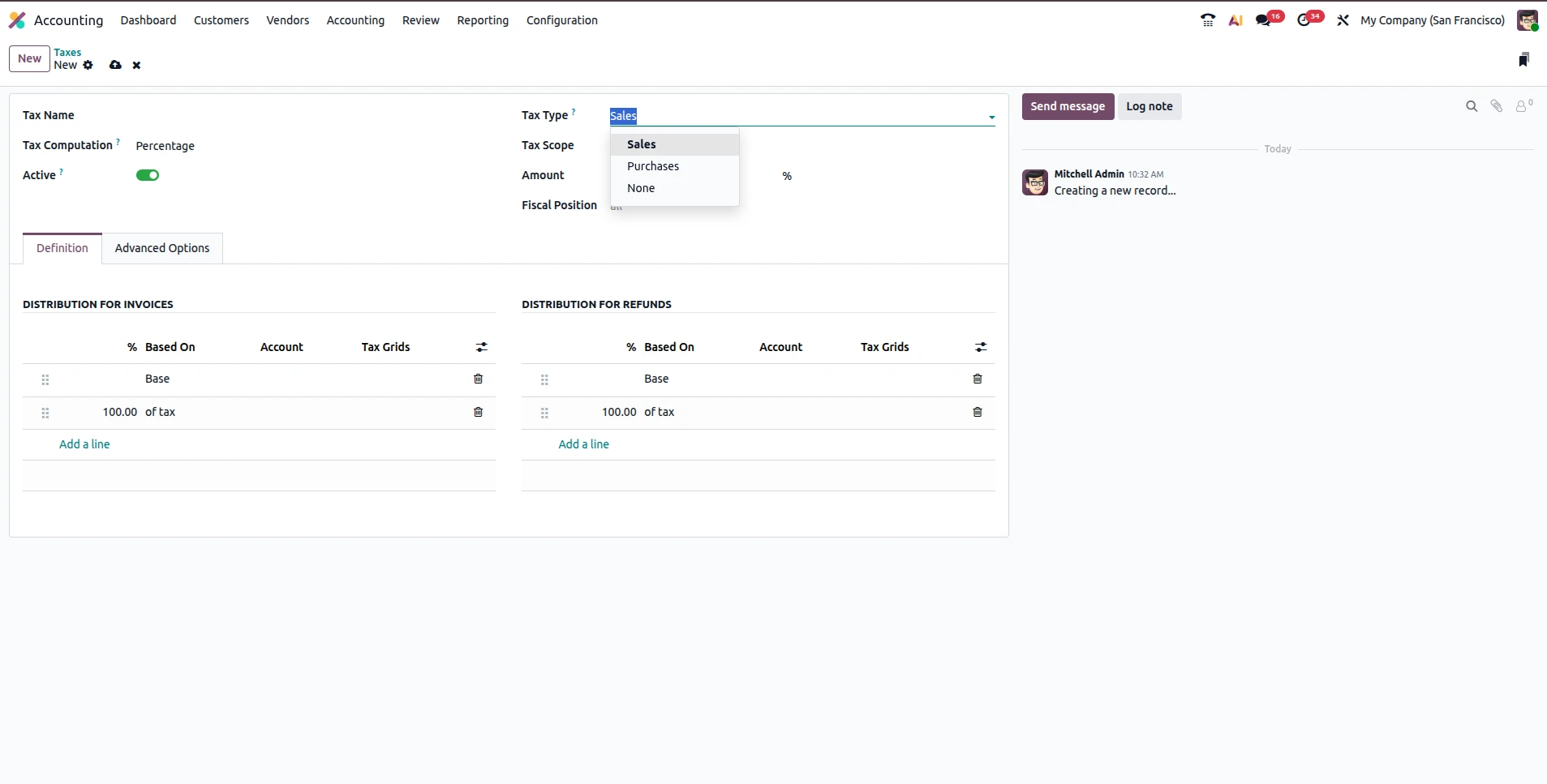
We will do that from Accounting → Configuration → Taxes. This will be your “command center” for everything, fiscal. From here, you can add new tax rules, change rates and make sure the money is going to the correct accounts in your ledger.
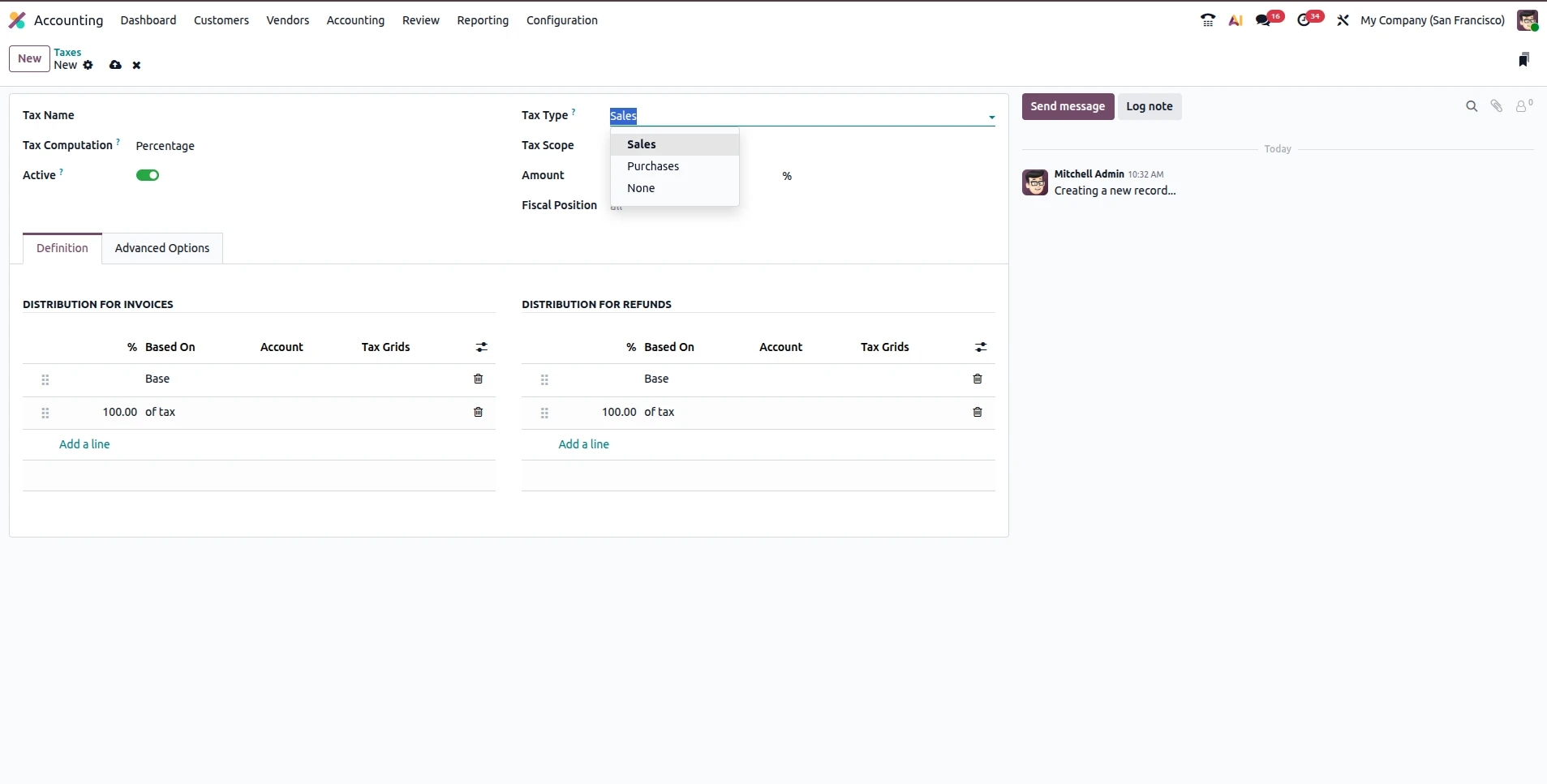
That's when configuring a tax, you'll see the option: "Included in Price". This small checkbox changes everything
1.Tax Included (B2C Style): The price the customer sees is what they pay. If a product is $115 with a 15% tax included, Odoo works backward to show a $100 base price and $15 in tax
2.Tax Excluded (B2B Style): The tax is added at the bottom of the bill. A $100 product gets 15% added on top, totaling $115 at checkout
Stress-Free Reporting
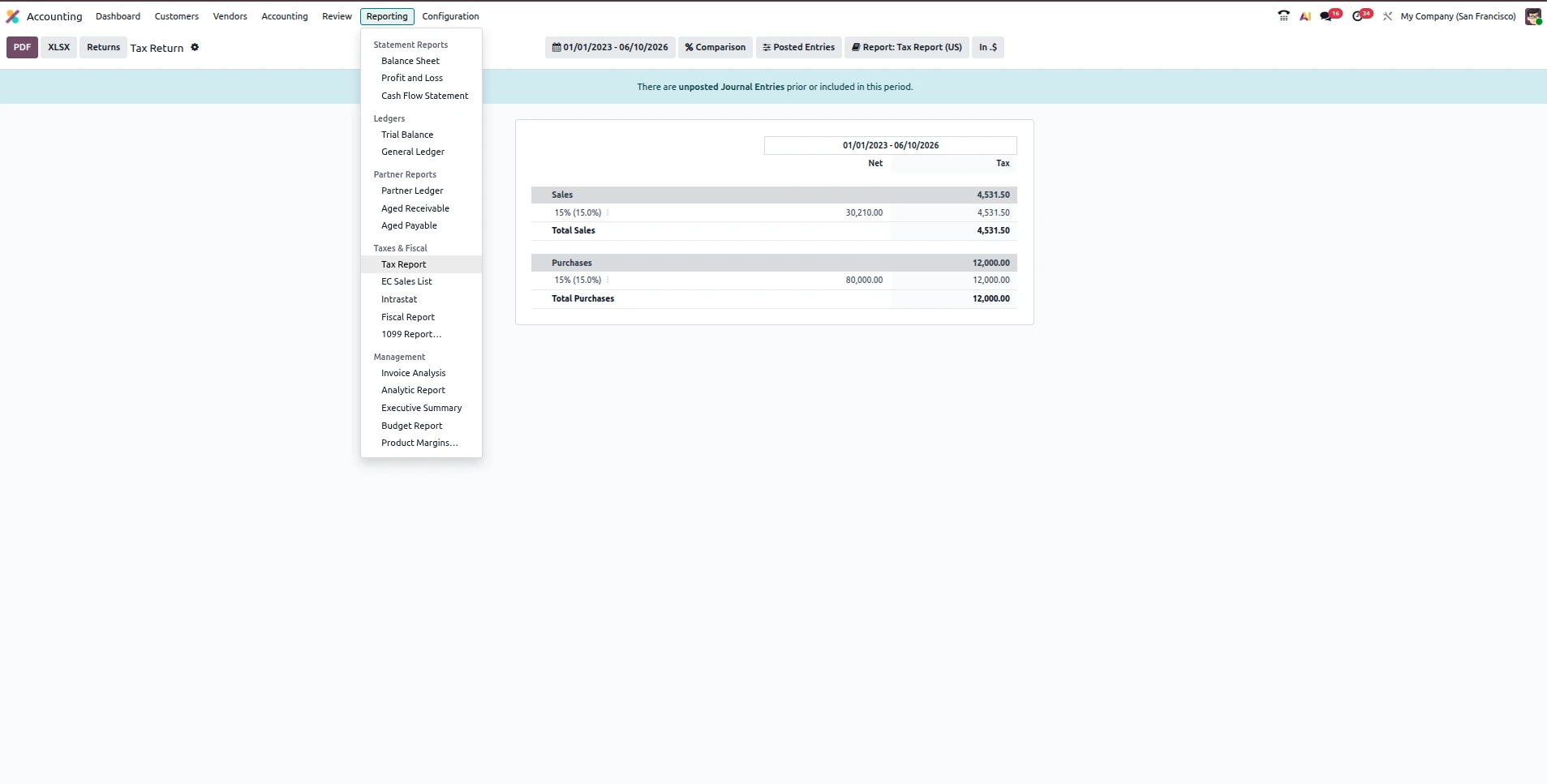
The end goal of all this configuration is the Tax Report. You can find it under Accounting → Reports → Tax Report.
Instead of spending days with a calculator and a pile of receipts, Odoo aggregates everything into a government-ready format. It doesn’t matter if you're filing for GST, VAT, or local sales tax—the system keeps the data structured, audit-ready, and, most importantly, accurate
Currencies
Going Global: Managing Multi-Currency in Odoo
Operating in a single currency is a luxury most modern businesses don’t have. Whether you are paying a freelancer in USD or sourcing parts in EUR, the moment you step outside your home borders, your accounting gets complicated. Odoo is designed to absorb that complexity, but only if you set it up with a clear strategy.
In Odoo, currency management isn't just about changing a symbol on an invoice; it’s about how the system tracks value over time as exchange rates fluctuate.
1. Defining Your "Anchor": The Company Currency
Everything in your Odoo database revolves around your Company Currency. This is your baseline. No matter how many foreign invoices you send, Odoo will always record a "shadow" entry in your home currency for your General Ledger.
Why it matters: This ensures that your Balance Sheet and Profit & Loss reports remain consistent.
Setup: You define this during your initial accounting configuration, and it should match the currency you use for tax filings.
2. Activating Multi-Currency Option
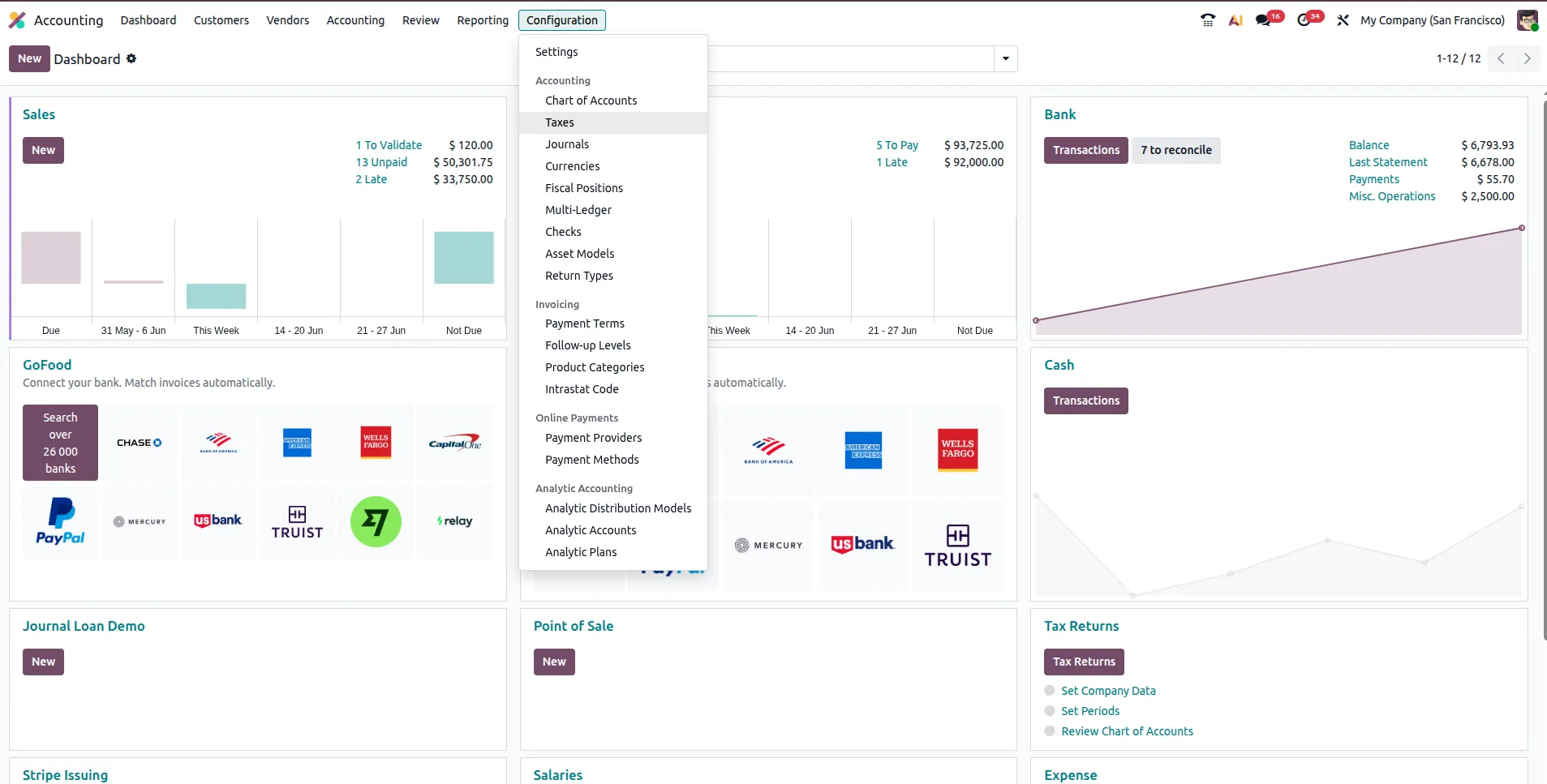
For Odoo, the default currency is set at just one currency for clients to see, and in order to have more than one currency option for them to choose from, you need to switch over to the Multi-Currency Feature option located in the Accounting menu under the Configuration sub-menu.
After the Multi-Currency option is on, you will have access to the Currency menu that you will find in the Configuration area under the Currencies section.
- You will want to turn on all of the currencies that you use to do business in but do this in a way that keeps your drop-down menus clean and easy to find by only turning on the currencies that you do business in.
- You will need to input the rate of exchange manually if you are using a fixed contract or you have the option to allow Odoo to maintain that rate of exchange for you automatically.
3. Automate your Rate of Exchange (Set and Forget)
You can manually change the rate of exchange each time you get paid, but this method creates problems. Odoo 19 is integrated with many of the major banks around the globe providing you with the ability to get your updated rates of exchange daily.
Precision - This is important to calculate your Unrealized Gain/Loss.
Benefit - If you bill a customer today at a rate of 1.2 and they pay you in 3 weeks at a rate of 1.1, then when the system gets the updated rates of exchange, the system automatically identifies the difference and will record the difference in your Exchange Difference account, eliminating the need for you to find the difference yourself.
4. Currency in your Sales and Purchase Process
One of the best things about the Odoo system is the way it works with price lists. For example, you can set up a price list specifically for each of your customers, which would automatically convert your dollar amount to that customer's currency type.
- Sales Orders - Once you have chosen a customer, Odoo will pull up their information from their profile, and if they have a specific price list assigned to them, it will automatically apply the price to their sale and convert the final amount on the invoice to their national currency.
5. Utilize the Currency by Customer at the Invoice Level
Once your invoices are created in the system, you can choose to create what are known as Currency by Customer invoices.
- These invoices will show how much of their local currency has been billed to them.








Leave a comment