

Handling product returns is an inevitable reality of running a product-based business. No matter how meticulously your fulfillment team operates or how rigorous your quality checks are, customers will occasionally change their minds, receive a damaged item in transit, or simply realize they ordered the wrong variant. While dealing with returns can often feel like an administrative nightmare involving warehouse adjustments, accounting corrections, and customer communication, having a robust ERP system transforms a chaotic ordeal into a smooth, documented process.
If you are operating on Odoo 19.0, you already have powerful tools built right into your sales, invoicing, and inventory modules to handle these scenarios flawlessly. Because Odoo's applications are fully integrated, an action taken in the warehouse automatically ripples through to your financial records, ensuring that nothing falls through the cracks. In this guide we are going to explore the two most common return scenarios you will encounter: processing a return before an invoice has been generated and managing a refund after the customer has already paid.
The Core technicality: Why inventory Rules the Return
Before executing a reversal, ensure your database is equipped with the inventory module. A return is not merely a financial correction; it is a physical logistical event. In Odoo 19 the system treats a return as a rebound movement of assets. Without the inventory app, the system cannot trigger the reverse transfer logic r+++++++required to reconcile your warehouse valuation and stock levels automatically.
Scenario 1: Processing a Return Before Invoicing
Let's look at a very common situation. A customer places an order, your team picks and packs the items, and the delivery order is validated. The truck is practically at the loading dock. Suddenly, the customer calls and cancels the order. Because the invoice hasn't been generated yet, your main priority is getting that stock onto the shelves and updating the sales order so you don't accidentally bill them.
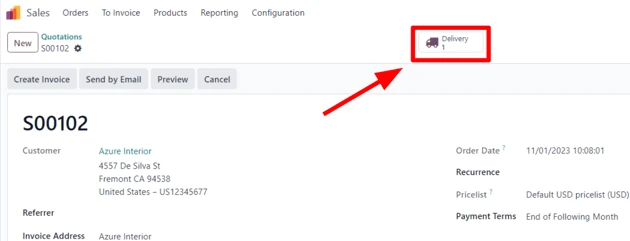
Your first move is to locate the original transaction. Navigate to your sales app, find the specific sales order in question, and open it. At the top right of the order screen, you will notice a Delivery smart button. Click on this to access the associated delivery order.
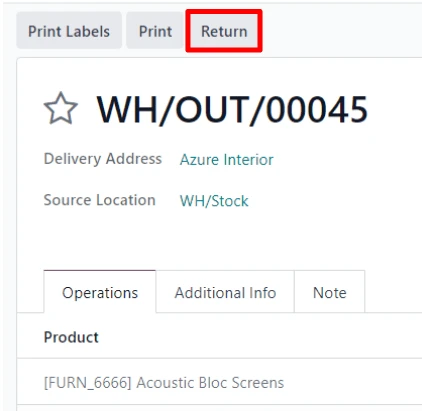
Initiate the Reversal: click Return. This opens a configuration window where Odoo 19 intelligently mirrors your original shipment
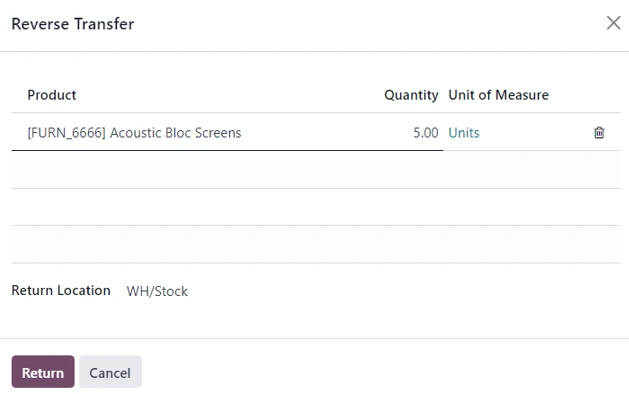
Once you are satisfied with the quantities, hit the Return button on the pop-up. This action doesn't instantly put the items back in stock; instead, it generates a brand-new warehouse operation specifically for the incoming returned products. This keeps your warehouse team in the loop so they know exactly what to expect at the receiving dock.
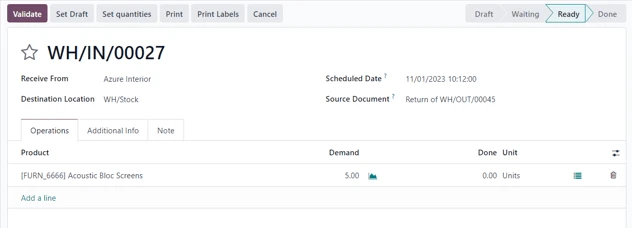
Once your team validates the incoming receipt at the dock the sales orders delivered column will self correct . When you finally generate your invoice Odoo will ignore the returned items ensuring the customer is only billed for what they kept.
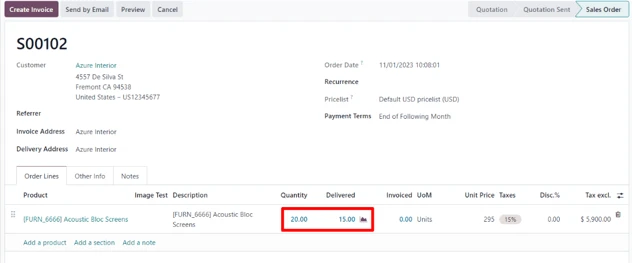
Now, when you finally generate the invoice for this order, the customer will only be billed for the items they actually kept. If they returned everything, there's no need to invoice them at all.
Scenario 2: Processing a Return After Invoicing
Now let's look at a slightly more complex situation. The customer has received the product the invoice has been sent, and they have already paid for it. A few days later, they request a return.
Once an invoice is validated and paid, Odoo locks the record to maintain an immutable audit trail. You cannot simply undo a paid invoice you must counterbalance it.
Therefore, simply performing a reverse transfer in the warehouse is not enough, we also need to balance the books using a credit note.
To handle this start by navigating to the relevant sales order in the sales app. you can easily verify that the order has been paid by checking the chatter on the right side of the screen which logs payment details. additionally, if you click into the invoices smart button you will see a prominent green 'In payment' banner indicating the financial status.
Your first step here is the same as the previous scenario: you must handle the physical movement of the goods. click on the delivery smart button from the sales order, open the validated delivery and hit the Return button. Edit the Products and quantities in the Reverse Transfer pop up an confirm. once the warehouse team receives the goods and validates the incoming transfer your delivered quantities on the sales orders order will update accordingly.
With the inventory sorted, it's time to fix the financials. go back to the sales order and click on the invoices smart button to open the validated invoice. At the top of this document, you will find a 'Credit Note' button.
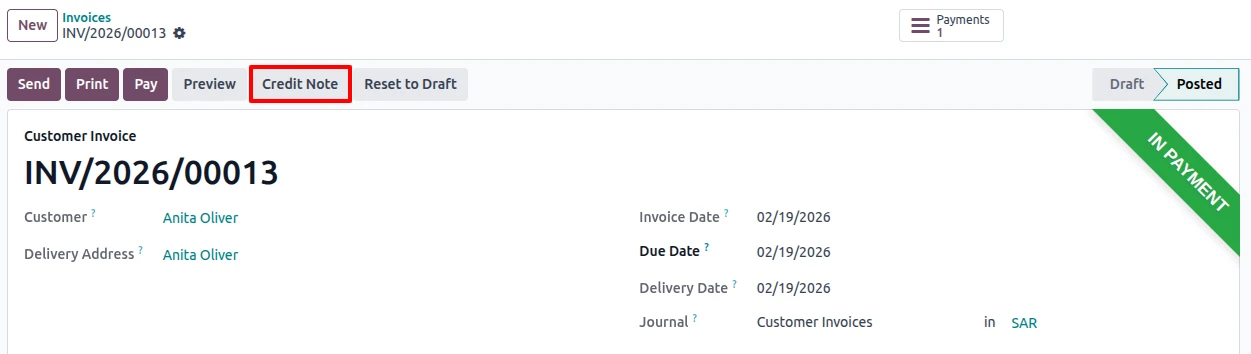
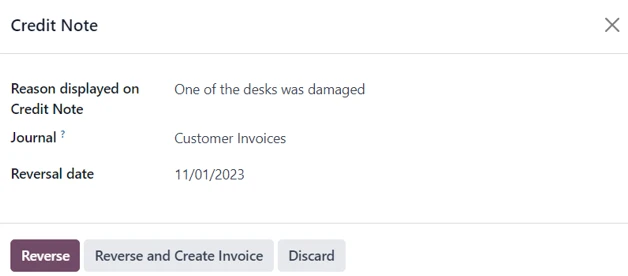
This opens the reversal dashboard. It is critical to fill out the reason field accurately not just for customer but for your internal quality tracking.
Once your details are set you have two primary options Reverse or Reverse and Create Invoice. choosing 'Reverse' simply crates a draft credit note that you can review. If you need to make adjustments to the draft you can do so before finalizing it.
Finally click confirm on the credit note . Odoo handles the background journal entries automatically Once confirmed Odoo 19 identifies the outstanding credit you can then choose to apply this to the customers next purchase or issue a direct refund to their bank account from here you can choose to leave the credit on the customer's account for a future purchase or process a direct refund through your payment gateway.








Leave a comment