

What is KOT ?
KOT stands for Kitchen Order Ticket.It is the order slip sent to the kitchen showing items to be prepared when a waiter or casheir confirms an order in the POS Restaurant system.Traditionally restaurants print these tickets on papers and passes to kitchen for preparation.
However, paper-based system often creates problem such as:
-
Misplaced Tickets
-
Delays in communication
-
Order preparation mistakes
-
Difficulty in tracking preparation status
To solve these challenges,restaurants and food businesses need a fast and error free way to send orders from billing counter to the kitchen.In Odoo 19, this is handled using the build in preparation display (Kitchen display) system which replace tradition paper KOT (Kitchen Order Tickets) with a digital kitchen screen.
This guide explains how to configure and use the KOT kitchen display in Odoo 19 with a clear step by step process.
What is KOT kitchen display in Odoo 19 enterprise?
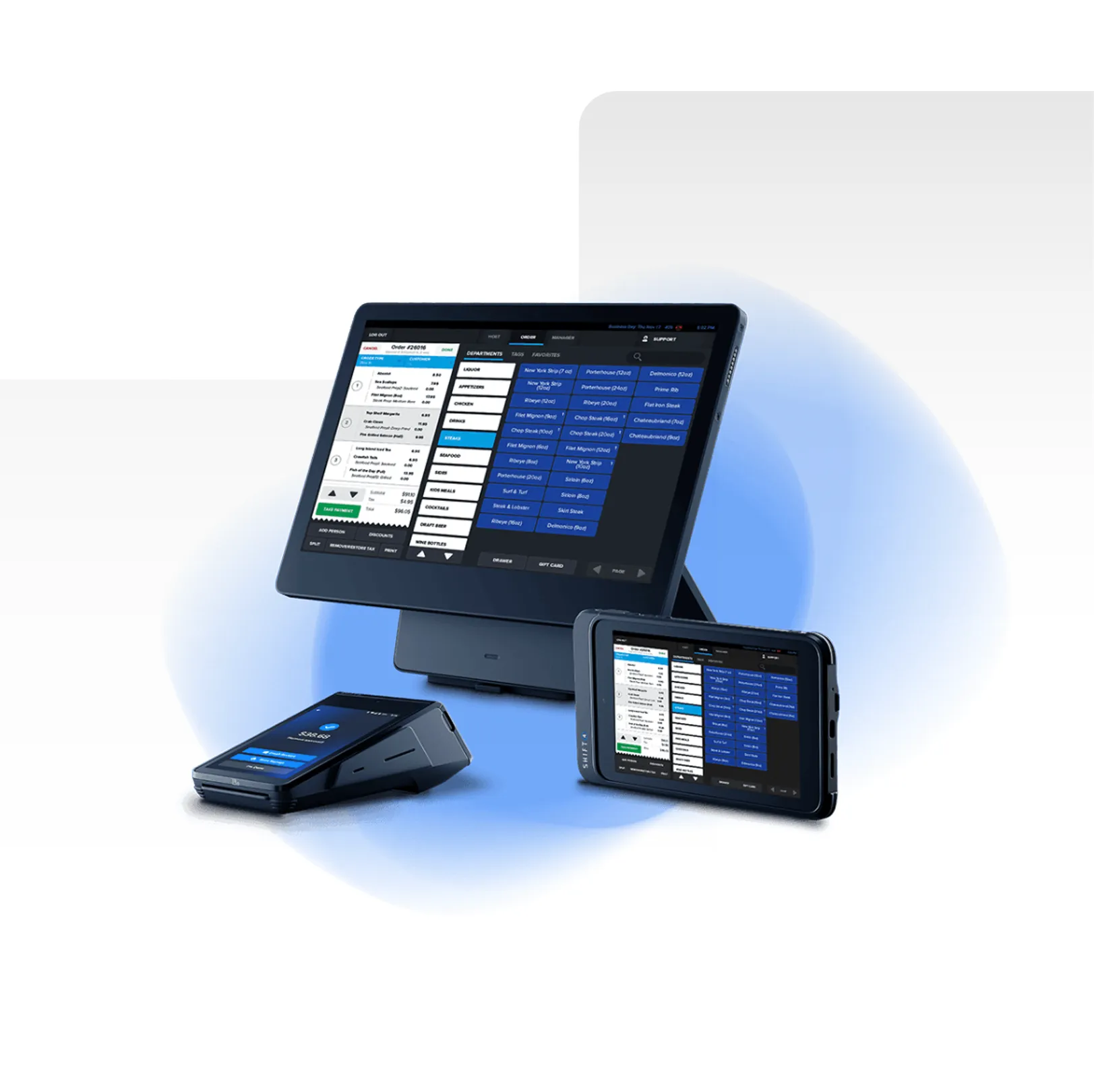
The preparation display in Odoo 19 is a live digital screen that allows kitchen staffs to view confirmed orders from POS directly on a screen. As soon as a cashier confirms an order in POS, it automatically appears on the kitchen screen with complete item details and preparation status.
The display typically shows:
-
Order number
-
Table number
-
Ordered items
-
Time elapsed since confirmation
-
Current preparation stage
Key benefits of using Kitchen Display in Odoo
-
Reduce order mistake
-
Speed up food preparation
-
Eliminate paper KOT slip
-
Track order preparation status in real time
-
Better workflow management
Step by step guide to configure KOT in odoo 19
Below is the detailed step by step configuration guide to implement the system correctly.
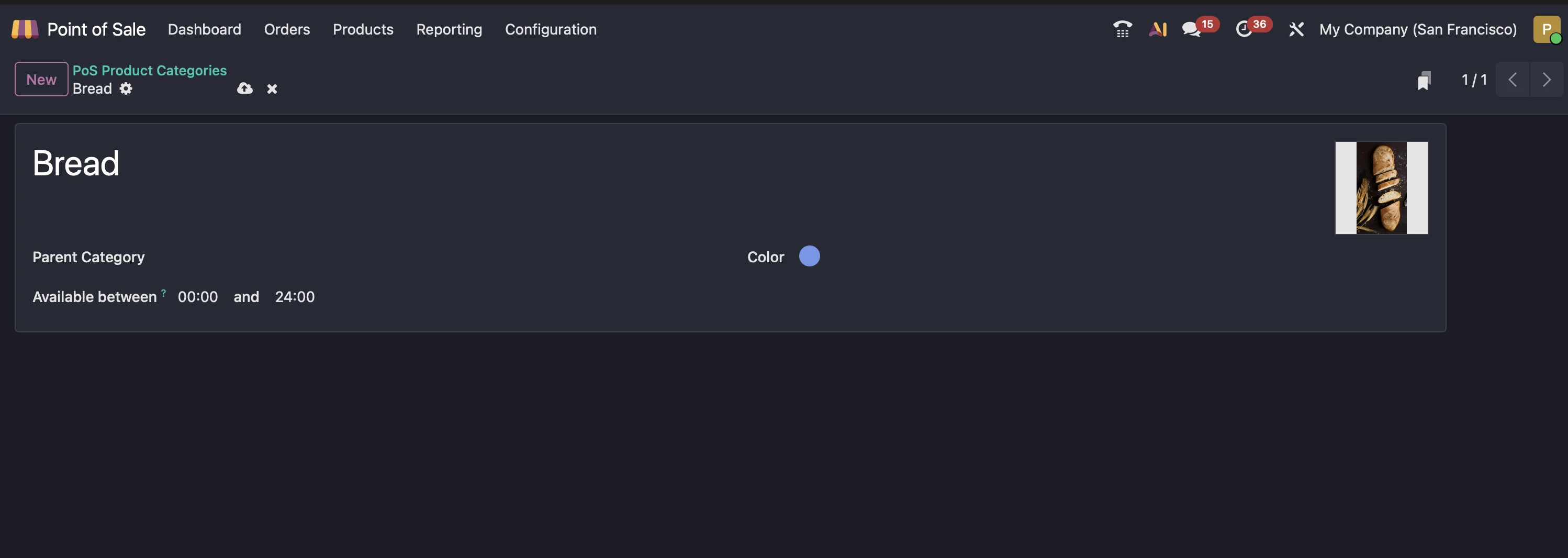
Step 1:Configuration of product categories
The first and most important step is organizing your product categories.
Configure product categories like:
- Breads
- Pastries
- Food
- Drinks
- Cocktails
Assign these categories to your food and beverage products.
This helps route items to the correct kitchen display
Navigation : POS → Products → Product categories
Why this step matters:
If categories are not configured correctly, orders may not appears on the intended display screen.
Step 2: Creation of preparation display
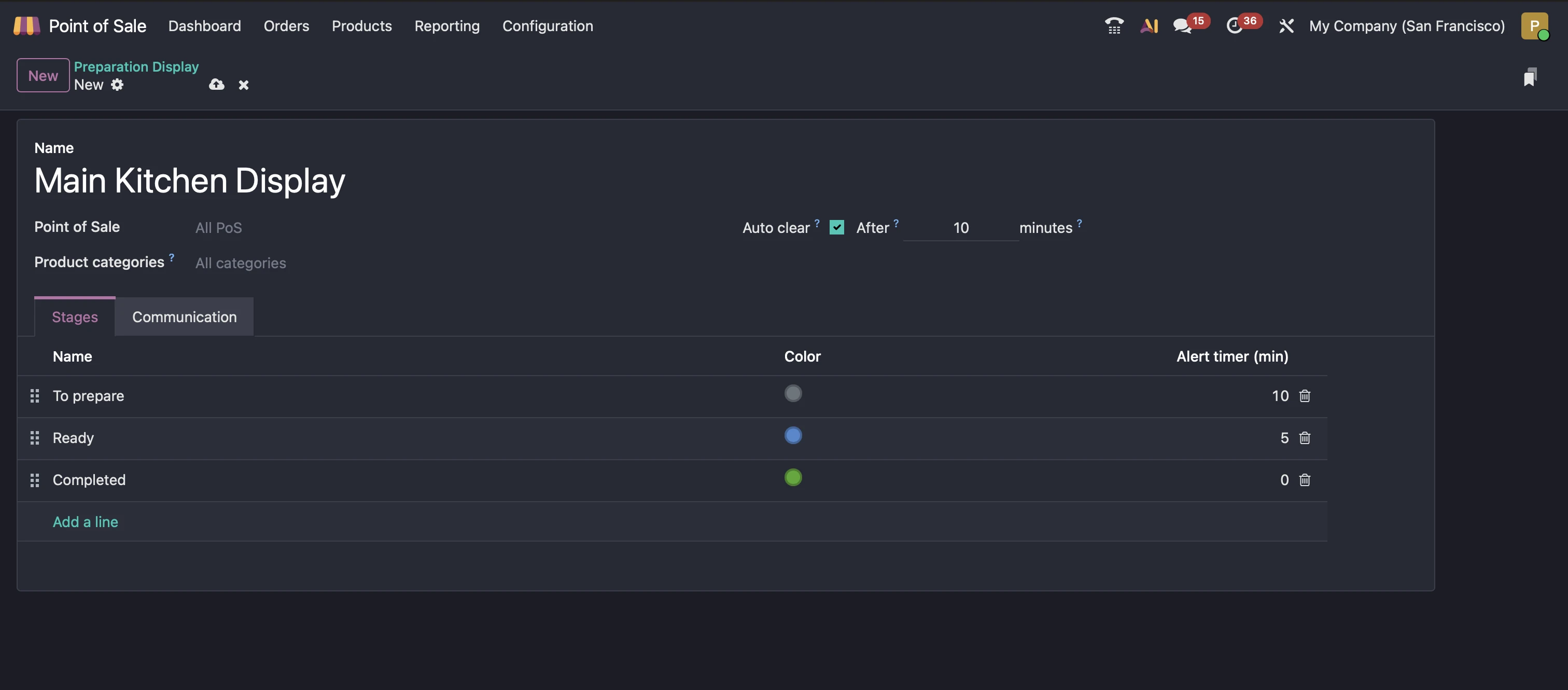
Now you will create the actual kitchen display screen.
Navigation POS→ Orders → preparation display
-
Click New
-
Enter details such as :
-
Name : Example - Main Kitchen Display
-
Point of Sale : Select your POS
-
Product categories : Select food categories
-
Auto Clear : For removing ready orders from the display within a given time, keeping the screen clear and organized
-
Under communication tab, enable SMS enabled for sending order status updates via SMS and enable WhatsApp messages for sending order status via whatsapp.
You can create multiple preparation displays for different sections, if required.
Step 3 : Configure preparation stages
Preparation stages help kitchen staff to track order progress visually.
Typical stages :
-
To prepare
-
In progress
-
Ready
-
Completed
Recommended stage setup:
-
To prepare – order has been received
-
In progress – Cooking or preparation has started
-
Ready – order is ready to serve
-
Completed – order served
You can also configure:
-
Time limits for each stages.
-
Alert notification for delayed orders
-
Visual indicators for urgent item
This helps maintain service standard and reduce waiting time
Step 4 : Open kitchen display screen
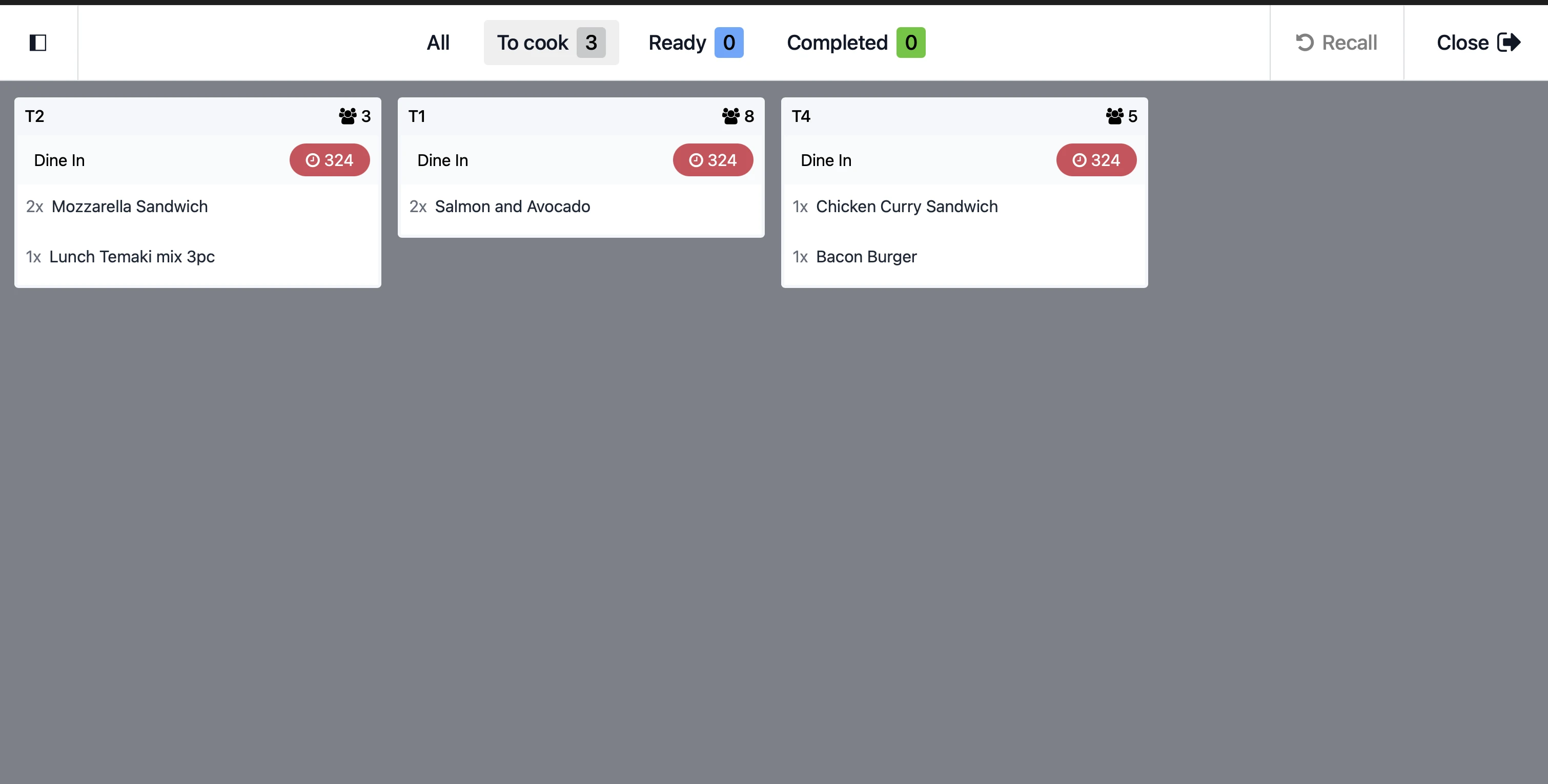
The kitchen display works as a live screen that can be opened on :
-
Kitchen TV
-
Tablet
-
Desktop browser
-
Navigation :
From Odoo dashboard, click ‘preparation display’.
This screen shows :
-
Order number
-
Table number
-
Item list
-
Time since order
-
Current preparation stage
Step 5 : Place a test order from POS to verify everything is working
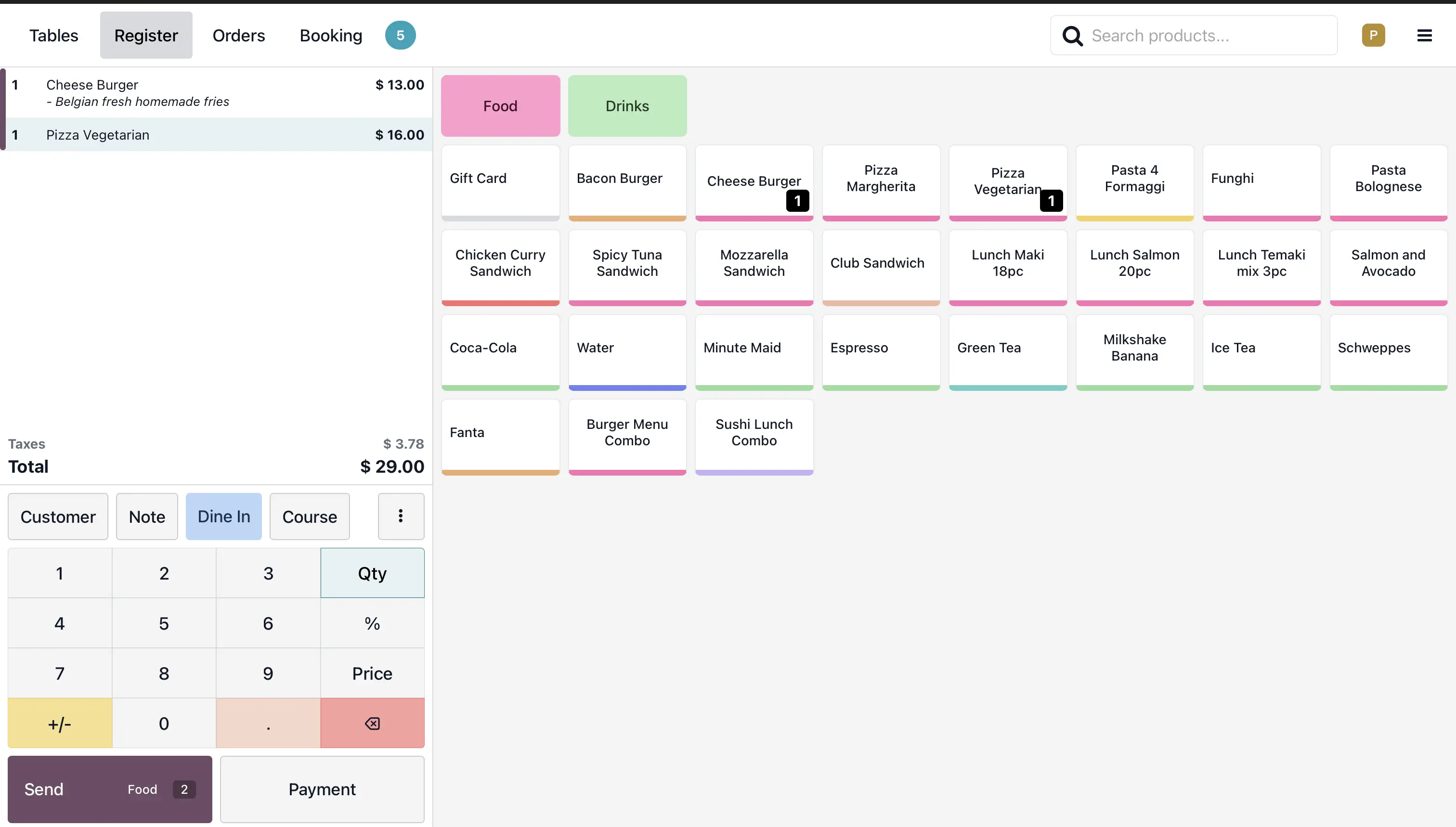
After completing configuration,test the setup to ensure everything works properly.
-
Open POS session
-
Add food items
-
Give table number
-
Give order details
-
Confirm order
-
Send order to kitchen
The order should instantly appear in kitchen display screen.
Step 6 : Update order status from kitchen
Kitchen staff can click on an order to move it through proceeding stages:
From To prepare → In progress → Ready
This updates is real-time and helps waiters know when food is ready
Advanced Tips for better kitchen management
To maximize efficiency, consider these better practices:
-
Use multiple Displays
If your restaurant having different kitchen sections, create individual kitchen displays.
-
Train staff on stage updates
Ensure kitchen staff consistently update order stages to maintain accurate tracking
-
Monitor order timing
Use elapsed time tracking to identify bottlenecks.
-
Customize based on workflow
Adapt stages according to your restaurant model (fast food,Dine-in,bakery,etc.)
Conclusion
Moving to the digital KOT in odoo 19 helps restaurant to manage orders in simpler and more practical way.Instead of relying paper slips, kitchen receives orders instantly and can update the progress easily. By using preparation display, orders move directly from POS to the kitchen in real time, reducing delays and misunderstandings. Kitchen staff can clearly see what needs to be prepared and update the status as work progresses.This improve the coordination with service team and the kitchen.
With proper setup and correct configuration, this system improve coordination, reduce confusions,support smoother operation and the system ensures :
-
Faster communication
-
Reduced order errors
-
Real-time tracking
-
Improved service speed
-
Better customer satisfaction




Leave a comment